
Received a notification email or text and want to manage how — or whether — you receive them? You’re in the right place.
These notifications are role-specific alerts based on your leadership responsibilities, so they don’t include an unsubscribe link like regular emails. Don’t worry—you’re welcome to manage these notifications through your profile, and it only takes a few minutes!
No Longer in This Role?
If you’ve retired, changed schools, finished your term, or otherwise moved on from a leadership position, opting out of notifications alone won’t fully disconnect you — especially for notifications marked as Required. What you really need is for your role to be removed or transferred.
-
Moving to a new chapter or state? Your role can be transferred, and your notifications will automatically update to reflect your new assignment. You can use the same account throughout your career and beyond.
-
Finished with your leadership responsibilities? You’ll need to have your role removed to stop receiving notifications related to it.
Here’s who to contact for either:
-
Local/chapter leaders — Reach out to your state leader directly. Follow these simple steps to access your state association’s profile and view their contact information.
-
State leaders — Email our State Relations Team at staterelations@ffa.org.
Once your role is removed, you’ll stop receiving notifications associated with it.
Other Things to Review
Notification preferences are managed in My Profile. While there, confirm your contact details are correct.
-
Make sure your email address is correct. A valid email is required for notifications.
-
Ensure your mobile phone number is up to date. A valid number is needed for SMS or text notifications.
Updating your info ensures notifications reach you as you prefer.
How to Manage Your Notification Preferences
-
Go to My Profile.
-
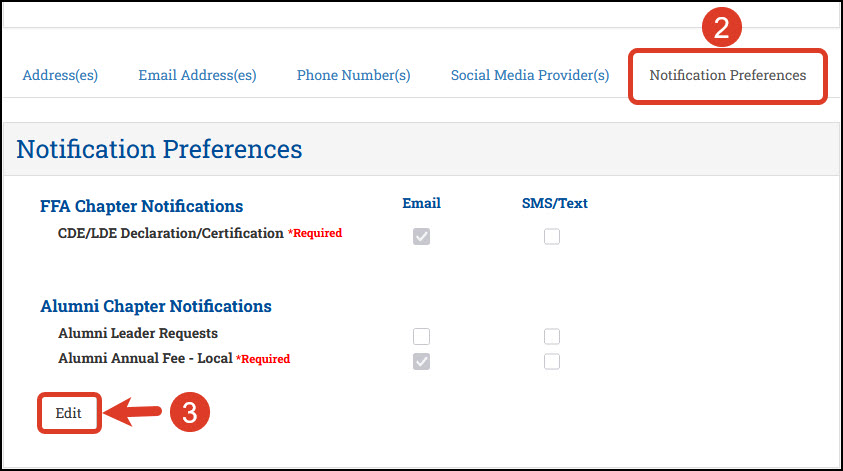
In the Profile Overview section, select Notification Preferences.
-
Click Edit.
-
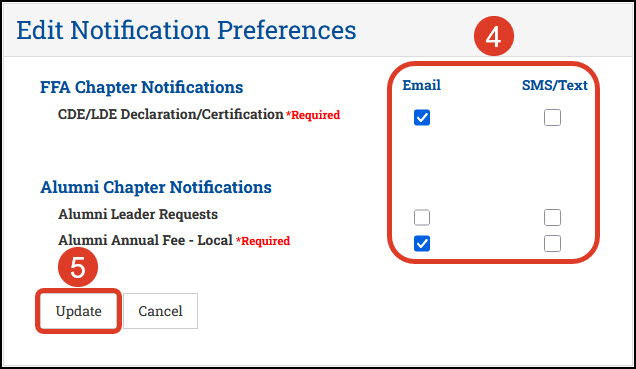
Select or deselect notifications as desired.
For notifications marked Required, you can’t opt out entirely — but you can choose how you receive them: email, SMS/text, or both.
-
Click Update to save your changes.
A Few Things Worth Knowing
Notification emails come from postmaster@mg.ffa.org. This is the official sending address for roster, profile, and CDE/LDE Declaration/Certification notifications. The “mg.ffa.org” domain is part of the National FFA Organization’s ffa.org domain, so these emails are legitimate and safe to open.
You only see what applies to you. The notifications shown are role-based, so you’ll only see those relevant to your assigned leader role — chapter or state.
Alumni Administration role? If you have an Alumni Administration role, you might see very few notifications listed — that’s normal, as only a limited number of notifications are available for that role.
These aren’t just general announcements. Chapter-level notifications help you stay updated on tasks specific to your chapter, ensuring you don’t miss anything important. Meanwhile, state-level notifications inform you about actions happening across all chapters in your state, so you’re always in the loop.
Looking to manage newsletter or announcement emails? Those are handled separately in the Newsletter Subscription Center and won’t appear in your Notification Preferences. You’ll need to manage those subscriptions there.